

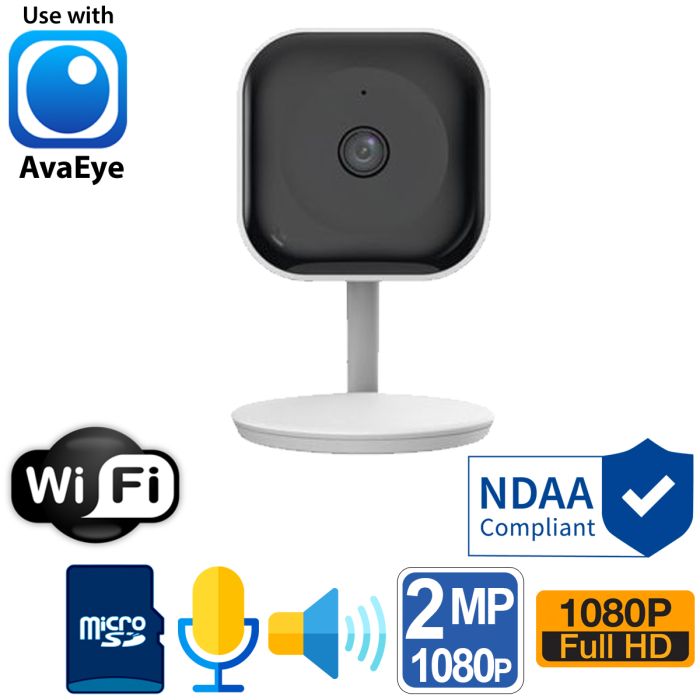

WiFi Nanny Camera, Two-way Audio, 1080P HD, AvaEye
Special Price
$119.99
Regular Price
$174.00
31% off
Overview
1080P WiFi Indoor Security Camera - AvaEye indoor WiFi camera with 1080P video, 2.4GHz wireless setup, 5VDC power, and a compact cube-style design.
Wide Room Coverage - The fixed 2.8mm lens provides a 110.1 degree view for rooms, counters, offices, and small indoor areas.
32ft IR Night Vision - Infrared night vision provides black-and-white viewing up to 32ft when the room is dark.
Two-Way Audio - Built-in microphone and speaker support live listen-in and talk-back through the supported mobile app or PC software.
WiFi App Setup - Connects to a 2.4GHz WiFi network and can be viewed through the supported smartphone app after setup with the included 5VDC power adapter.
microSD Recording - Supports microSD cards up to 128GB for in-camera recording, with playback available through supported app or software workflows.
ONVIF S/G/T Support - Supports ONVIF S/G/T for use with compatible third-party NVRs or video software.
Indoor NDAA Compliant Camera - NDAA compliant indoor camera with H.265/H.264 video, audio detection, video motion detection, and plastic housing.

Check out this AvaEye 2MP Nanny Cam Style WiFi Camera, a synthesis of form and function that's designed to fit into budget and middle-of-the-road security camera systems. As a key component of our esteemed AvaEye series, this security camera meets and exceeds expectations of current-day surveillance requirements.
Introducing the AvaEye 1080P Professional WiFi Camera. For customers seeking an effective indoor security solution, the AvaEye Series offers a 1080P WiFi camera designed for optimal performance and functionality. Compatible with 2.4GHz WiFi routers, it's IP addressable for easy connectivity and remote monitoring.
Importantly, this camera is NDAA compliant, meeting high data protection and security standards. It's versatile too; it can operate as a standalone web camera or be integrated into a professional PoE camera system when used with an AvaEye NVR. Whether for a budget or mid-tier security system, the AvaEye 1080P Nanny Cam Style WiFi Camera delivers clear visuals and reliable performance.
If you want to see how easy it is to connect this WiFi nanny camera to your 2.4 GHz router and the mobile app, watch the setup video below. It walks through unboxing, powering the camera with the included 5V DC adapter, pairing it to WiFi, and enabling two-way audio and microSD recording from the app.
Video: Setting up the AvaEye WiFi Nanny Camera with the Smartphone App
View transcript: Setting up the AvaEye WiFi Nanny Camera with the EZView app
0:00 In this video we will show how to connect this AvaEye WiFi cube camera, available from CCTV Camera World, to your WiFi router so you can view it from anywhere using the EZView app. We start with what comes in the box and then walk through the setup step by step.
0:20 Inside the box you get the camera itself, a USB cable that plugs into the bottom of the camera, a 5V DC power adapter that connects to the USB cable, and screws to mount the camera. On the bottom of the camera there is an Ethernet jack, a reset button, and the micro USB power connection.
0:40 The first step in connecting this camera is to download the EZView app and install it on your phone. The process is the same on iPhone and Android. Go to your app store, search for EZView from UNV, and make sure you select the EZView UNV app rather than any sponsored result or ad.
1:20 After downloading the app, open it and swipe through the intro screens until you see the Get Started button. Agree to the privacy agreement and close any pop ups. If you do not already have an account, tap Sign Up and choose your region, such as United States.
1:50 Enter your email address, then tap Send Code. If the app asks you to agree to the terms again, check the box and tap Send Code once more. You may be asked to complete a simple verification, then the app sends a verification code to your email inbox.
2:30 Check your email for the code from the cloud service, then return to the app and enter the code before it expires. Tap Next and you will be prompted to create a password for your EZView account. This password is only for logging in to the app, it does not set the password on the camera itself.
3:10 Once you finish creating the account, you will arrive at the live view screen where devices will appear later. Before adding the camera, confirm that your phone is connected to the same 2.4 GHz WiFi network that you want the camera to use. The camera cannot connect to a 5 GHz only network.
3:40 Now it is time to power the camera. Plug the shorter end of the USB cable into the micro USB port on the bottom of the camera, making sure the connector is oriented correctly. Then plug the other end into the 5V DC power adapter and connect the adapter to a powered outlet or power strip.
4:10 When power is applied, a red LED will turn on to indicate that the camera is booting. After a short boot sequence, the camera will announce that it is ready to pair and the blue LED will start blinking. While it is pairing, flip the camera over and locate the QR registration code on the bottom label.
4:50 The QR code on the bottom of the camera is what you will scan into the EZView app to register it as a cloud device. You will also hear vocal prompts such as welcome, wait for network connection, and please add and configure the device on the mobile client, which confirm it is ready for setup.
5:20 On your phone, you can do a quick site survey to confirm that you are on a 2.4 GHz WiFi connection and not on a 5G network. The camera is incapable of connecting to 5 GHz WiFi, so the phone must be joined to the 2.4 GHz SSID during pairing.
5:50 In the EZView app, tap the menu icon with three lines, then go to Devices and tap Add a device. Choose the option to add a WiFi device and wait until the camera announces that it is waiting for network connection so you know it is in pairing mode.
6:30 When prompted, tap that the camera is waiting to be connected and choose Add as a cloud device, not as a local device. Adding it as a cloud device is what allows you to watch the camera from outside your home or office network over the internet.
7:00 The app will ask for permission to use your location, which you should allow while using the app. Then enter a device name for the camera, such as Nanny Cam or Office Camera. You will see a warning that 5G WiFi is not supported, which is a reminder that the camera must use 2.4 GHz WiFi.
7:30 Next, type in your WiFi password so the EZView app can securely pass it to the camera. After entering the password, tap the scan icon to scan the registration QR code on the bottom of the camera. Allow camera access for the app, then point your phone at the QR code until it registers.
8:10 After scanning the code, tap to connect automatically. Your phone may ask if it is allowed to join a temporary network during setup, so tap Join. The blue LED on the camera will blink while it is connecting. At the bottom of the app you should see messages that the device was added successfully and that the network is connected and the device is being added to the cloud.
8:50 The camera will confirm with voice prompts that it has been added to the cloud, and the blue LED will become solid when the WiFi connection is established. The app will then prompt you to set the correct time zone and daylight savings time settings for your region before you finish.
9:20 When everything is complete, the camera should appear in your Devices list in the app with an Online status. If it appears offline even though the blue LED is solid and the voice prompts confirmed connection, close the app and reopen it, then return to the Devices screen to refresh the status.
9:50 Tap on the device entry to start a live view and you should see real time video from the camera. Double tap the video tile to expand it to full screen. You will notice that the video is travelling from the camera, through the internet, and back to your phone for remote viewing.
10:20 To use two way audio, tap the two way audio icon and allow microphone access when prompted. Speak into your phone and you will hear your voice from the camera speaker. If the phone is too close to the camera you may hear audio feedback, so step back a little during testing.
10:50 If you are unable to follow these instructions successfully or you need to start over, you can reset the camera using the reset button on the bottom. With the camera powered on, press and hold the reset button for about ten seconds using a small non-metallic object like a pencil, then release and wait for the red LED to go solid as it reboots.
11:15 When the camera resets, it will return to pairing mode with a blinking blue LED and you can repeat the setup steps. There is also a microSD card slot on the side of the camera. Insert a microSD card in the correct orientation to enable in-camera recording, which you can access later through the EZView app. This concludes the setup walkthrough for the AvaEye WiFi nanny camera.
|
1080P HD VideoA 2MP Progressive Scan CMOS Image Sensor powers this camera, which produces clear 1080P video at a steady 30 frames per second. To give you an idea of its power, the camera can capture facial details up to 20 feet with an ultrawide 110.1-degree angle. Advanced image features, including DWDR, BLC, HLC, and 3DNR, offer enhanced video quality in varied lighting conditions. With H.265+ video encoding, you can enjoy up to 70% bandwidth savings compared to H.264, ensuring efficient data transfer and storage. |
|
Night VisionWhether day or night, the camera automatically switches between color and black and white modes based on the lighting around it. In the darkness at night, the camera's infrared LED provides up to 32ft of IR night vision for black-and-white video, making sure your premises are monitored even in complete darkness. |
|
Built-in Microphone and SpeakerFor those interested in audio surveillance, the camera's built-in microphone ensures clear audio pickup, covering up to 30 feet in a quiet environment. On top of having a microphone, this camera also has a built-in speaker that can be used for two-way audio via the mobile app, PC software, or to sound out alarms. Additionally, it has audio detection that makes sure recording starts, and an alert can be sent if the camera hears an unexpected noise based on the parameters you set. |
|
WiFi ConnectivityThanks to the built-in WiFi radio, video and audio transmission is convenient using your existing 2.4GHz WiFi network. The camera requires at least 90% WiF signal strength from a nearby WiFi router or APi for reliable video transmission. Simply power the camera with the included 5VDC power supply, pair it with your WiFi network using a Windows PC computer, and enjoy. The maximum WiFi distance for this camera is up to 125 feet without obstructions. |
|
Many Ways to Watch and RecordAccessibility is made simple, allowing users to view footage via a compatible AvaEye NVR, web browser, AvaEye PC/Mac software, or AvaEye App for smartphones and tablets. For storage flexibility, the camera can record to multiple destinations: a dedicated AvaEye NVR, the AvaEye computer software for PC/Mac, or an internal MicroSD of up to 128GB. |
|
NDAA CompliantNeed NDAA-compliant cameras? NDAA refers to the National Defense Authorization Act, which in recent years has limited the use of various surveillance equipment brands within federal and military facilities. This restriction extends to non-profits and businesses that receive federal funding or have contracts with the US Federal Government. With NDAA-compliant status, this camera offers peace of mind, ensuring you are in compliance when making a purchase. |
|
AvaEyeAvaEye cameras and NVRs are made to connect effortlessly with each other, ensuring a streamlined plug-and-play process. Using a compatible NVR not only offers users an easy setup but also allows you to take advantage of advanced video analytics and optimized surveillance from a PC/Mac or mobile device. Opt for a solution that elevates and simplifies your residential or commercial security setup. |
Features
- WiFi Nanny Camera
- 1080P HD video quality
- Two-Way Audio functionality
- Converse over our smartphone app or PC software
- 2MP Progressive Scan CMOS Image Sensor
- Up to 32ft of IR night vision
- Facial detail up to 20ft away*
- Built-in microphone for audio pickup up to 30ft
- Built-in speaker for two-way audio interaction
- Day & Night Switching (color vs black & white) in complete darkness
- H.265 and H.264 Video encoding
- H.265+ provides up to 70% in bandwidth savings over H.264
- 2 Video Streams: Main Stream, Sub Stream
- Advanced Image Features: DWDR / BLC / HLC / 3DNR
- WiFi 802.11b/g/n support
- Mounts to wall, ceiling, or any flat surface
- Internal MicroSD support up to 128GB (optional)
- Records to NVR, Computer, NAS, FTP, or internal MicroSD
- View from NVR, Web Browser, Smartphone or Tablet
- Plastic construction
- Indoor use
- NDAA Compliant
What's included?
- (1) 1080P WiFi Nanny Camera with Microphone and Speaker
Specifications
| Image Sensor | 1/2.9" 2MP Progressive Scan CMOS | ||||||||||||||||||||||||||||||||||
| Effective Pixels | 1920 (H) x 1080 (V) | ||||||||||||||||||||||||||||||||||
| Electronic Shutter Speed | Auto/Manual, 1/1- 1/100000s | ||||||||||||||||||||||||||||||||||
| Minimum Illumination | 0.01 Lux F2.0 (Color), 0 Lux IR On | ||||||||||||||||||||||||||||||||||
| S/N Ratio | More than 52dB | ||||||||||||||||||||||||||||||||||
| IR Distance | Up to 32ft | ||||||||||||||||||||||||||||||||||
| IR On/Off Control | Auto, Manual | ||||||||||||||||||||||||||||||||||
| Lens Type | Fixed | ||||||||||||||||||||||||||||||||||
| Focal Length | 2.8mm | ||||||||||||||||||||||||||||||||||
| Max Aperture | F2.0 | ||||||||||||||||||||||||||||||||||
| Angle of View | Horizontal: 110.1° Vertical: 47.9° | ||||||||||||||||||||||||||||||||||
| Focus Control | Fixed | ||||||||||||||||||||||||||||||||||
| Compression | H.265+, H.265, H.264 Base/Main/High | ||||||||||||||||||||||||||||||||||
| Analytics | Supports Audio Detection, Video Motion Detection | ||||||||||||||||||||||||||||||||||
| Streaming Capability | 2 Streams (Main Stream, Sub Stream) | ||||||||||||||||||||||||||||||||||
| Resolution | 1080P (1920x1080), 720P (1280x720) | ||||||||||||||||||||||||||||||||||
| Frame Rate | Main Stream: 1080P (1-30fps) Sub Stream: 720P (1-30fps) | ||||||||||||||||||||||||||||||||||
| Bit Rate Control | CBR, VBR | ||||||||||||||||||||||||||||||||||
| Bit Rate | 128K - 6144Kbps | ||||||||||||||||||||||||||||||||||
| Day/Night | Auto (ICR), Color, B/W | ||||||||||||||||||||||||||||||||||
| BLC Mode | BLC, HLC | ||||||||||||||||||||||||||||||||||
| White Balance | Auto, Auto2, Locked, Street Lamp, Outdoor, Manual | ||||||||||||||||||||||||||||||||||
| Noise Reduction | 3D DNR | ||||||||||||||||||||||||||||||||||
| Motion Detection | Off / On (4 Zone, Rectangle) | ||||||||||||||||||||||||||||||||||
| Region of Interest | Off / On (8 Zone) | ||||||||||||||||||||||||||||||||||
| Smart IR | Yes | ||||||||||||||||||||||||||||||||||
| Digital Zoom | Yes | ||||||||||||||||||||||||||||||||||
| Flip | 0°, 90°, 180°, 270° | ||||||||||||||||||||||||||||||||||
| Mirror | Off / On | ||||||||||||||||||||||||||||||||||
| Privacy Masking | Off / On (4 Area, Rectangle) | ||||||||||||||||||||||||||||||||||
| Audio Input | Yes, built-in microphone. G.711 codec, 8KHz Sampling Rate | ||||||||||||||||||||||||||||||||||
| Audio Output | Yes, built-in speaker | ||||||||||||||||||||||||||||||||||
| Alarm Input | No |
||||||||||||||||||||||||||||||||||
| Ethernet | RJ-45 100Mbps | ||||||||||||||||||||||||||||||||||
| WiFi | 2.4GHz (IEEE802.11/b/g/n), max 125ft without obstructions | ||||||||||||||||||||||||||||||||||
| Protocols | IPv4, IGMP, ICMP, ARP, TCP, UDP, DHCP, RTP, RTSP, RTCP, DNS, DDNS, NTP, FTP, UPnP, HTTP, HTTPS, SMTP, QoS, SSL, SNMP | ||||||||||||||||||||||||||||||||||
| Compatibility | Avalonix, ONVIF Profile S / G / T | ||||||||||||||||||||||||||||||||||
| Streaming Method | Unicast | ||||||||||||||||||||||||||||||||||
| Max. User Access | 20 Users | ||||||||||||||||||||||||||||||||||
| Record Method | NVR, NAS (Network Attached Storage), Local PC for instant recording, MicroSD up to 128GB | ||||||||||||||||||||||||||||||||||
| MicroSD | Up to 128GB (optional) | ||||||||||||||||||||||||||||||||||
| Web Viewer | IE**, Edge, Chrome, Firefox | ||||||||||||||||||||||||||||||||||
| Mobile Device | iOS, Android | ||||||||||||||||||||||||||||||||||
| Power Supply | 5V DC | ||||||||||||||||||||||||||||||||||
| Power Consumption | 4W | ||||||||||||||||||||||||||||||||||
| Operating Conditions | 14°F – +104°F, Less than 95% RH | ||||||||||||||||||||||||||||||||||
| Weather Protection | No | ||||||||||||||||||||||||||||||||||
| Vandal Resistance | No | ||||||||||||||||||||||||||||||||||
| Casing | Plastic | ||||||||||||||||||||||||||||||||||
| Dimensions | 3.0" x 1.7" x 4.9"(length x width x height) | ||||||||||||||||||||||||||||||||||
| Net Weight | 0.32 lbs | ||||||||||||||||||||||||||||||||||
| Certifications | FCC | ||||||||||||||||||||||||||||||||||
*Distance is calculated based on sensor specifications and lab test results in ideal daylight conditions without glare. Identification means positive ID of a face, recognize means ability to tell the likeness of an individual.
**IE or Microsoft Edge with IE Mode, provides access to full feature set of the web interface with Plugin installation. Chrome, Firefox, and Edge provide limited functionality of web interface. For full functionality consider using the AvaEye CMS software.
| Camera Type | IP |
|---|---|
| Image Sensor | 1/2.9" CMOS Sensor |
| Video Encoding | H.265/H.264 |
| Resolution | 1080P |
| Lens | 2.8mm |
| Angle of View | 110° |
| Optical Zoom | No |
| Wide Dynamic Range (WDR) | DWDR |
| IR Night Vision | 32ft |
| Audio | Built-in Mic & Speaker |
| SD Card Slot | Yes |
| Pan Tilt Zoom | No |
| Power Input | 5V DC |
| Operating Temperature | +14°F to +104°F |
| Dimensions | 3.0” × 1.7” × 4.9” |
| Weather Proof | Indoor Use |
| Camera Color | White |
| Warranty | 1 Year |
| Brand | AvaEye |
| Return Policy | 30 Days Return Policy |
Write Your Own Review