
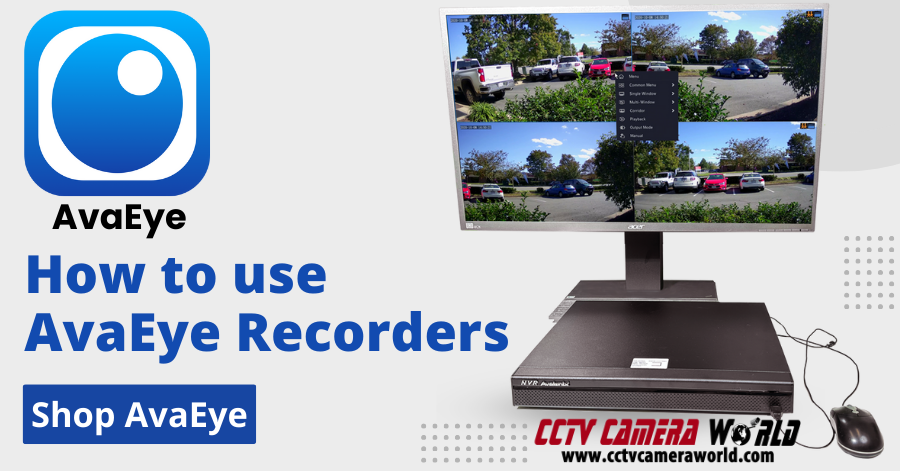
How to use AvaEye NDAA Compliant Security Systems

This guide is meant for customers using the NDAA compliant AvaEye security cameras and NVR recorders from CCTV Camera World. AveEye products are professional grade surveillance equipment suitable for use not only at home, but also in businesses and government organizations that must comply with NDAA requirements. When using AvaEye PoE security cameras with an AvaEye NVR you get the benefits of using compatible equipment that provides plug and play deployment, smart event detection and notification. This is guide is a great resource for you to learn how to use your AvaEye PoE camera system by watching easy to follow videos. To get started with how to operate your system we recommend watching the videos below which provide all the useful information needed to get the most out of your system.
Contents
- How to Login
- How to connect PoE Cameras to the NVR
- 2b. How to Add IP Cameras to an AvaEye NVR Over the Network - PoE NVR
- 2c. How to Add IP Cameras to an AvaEye NVR Over the Network - NVR without built-in PoE
- Live Viewing Video and Audio from security cameras
- Setting Recording Resolution and Encoding Settings
- Customizing Camera Image Settings
- Setting up Motion Detection and Recording Methods
- Recorded Video Playback
- Exporting Recorded Video
- Remotely viewing your security camera system
- Using the AvaEye PC Client Software
1. How to Login
Before setting up remote viewing, or accessing the system over a network with a web browser, you will need to login at the NVR using a mouse and HDMI monitor. It is important to use a 1080P compatible computer monitor or TV to get started.
Log in using the graphical user password, or the written admin password that is located on the label on the top of your recorder. Please watch the video tutorial below to learn more about logging in.

2. How to connect IP PoE cameras to the NVR
It's important to note that this step (Step 2) is only necessary if your cameras do not come up 3 to 5 minutes after connecting them to the back of the NVR.
Cameras purchased with our NDAA compliant AvaEye NVRs are compatible using the "Private" plug and play protocol which makes it easy to connect cameras to the PoE ports on the back of the NVR. We demonstrate in this video how to connect the camera to the back of the recorder and add it as a camera channel using the camera list.

2b. How to Add IP Cameras to an AvaEye NVR Over the Network - PoE NVR
When you already have a PoE NVR but want to place one or more AvaEye cameras farther away on a separate PoE switch, this video shows the correct way to wire and add them. It walks through connecting the NVR’s LAN port to the same network as the PoE switch, finding the camera in the Cam Config search list, choosing the Private protocol for adding IP cameras, and entering the proper password so the channel comes online. This is the go-to tutorial for extending a PoE NVR beyond the built-in ports while keeping everything on the same local network.

2c. How to Add IP Cameras to an AvaEye NVR Over the Network - NVR without a built-in PoE Switch
If your AvaEye NVR does not have built-in PoE ports, like our 64-channel NVR models, all cameras must be connected over the network using external PoE switches or injectors. This video shows how to work in that scenario: assigning a static IP to each camera, using the NVR’s camera menu to search for devices, and adding them by IP address with the correct protocol and login credentials. It is ideal for larger or more flexible installations where all cameras live on the local network with power over Ethernet infrastructure rather than plugging directly into the back of the recorder.

3. Live Viewing Video and Audio from security cameras
The system provides multiple ways to view security cameras that are connected to the back of the NVR. Network video recorders can view many cameras in a multi-grid view, or one camera in full screen mode. If the cameras have a built-in microphone or microphone input for audio the audio can be heard when viewing in full screen mode, or by manually enabling audio for the channel on the multi-grid screen.

It is important to highlight the differences between digital and motorized optical zoom when using security cameras. Digital zoom takes a portion of video and stretches the image for slightly better detail, but causes pixelation quickly.
Optical zoom can only be used in live view mode, and is used to set up the view that the camera will record. Motorized zoom security cameras physically rotate the lens to optically zoom-in when watching video live, which does not stretch the image and does not cause pixelation. However, optical zoom does cut down on the angle of view a camera sees.
A camera must have a motorized zoom lens in order for a recorder to send zoom commands, but all our cameras and systems support digital zoom.

Last but not least are PTZ or Pan-Tilt-Zoom cameras that can be controlled from the security camera system. PTZ cameras are mainly useful for active surveillance for security guards, or a vigilant home owner. To learn how to use PTZ cameras with the system watch the video below!

4. Setting Recording Resolution and Encoding Settings
Recording resolution and encoding settings are what determines how well a camera is viewed and recorded to the NVR. Our AvaEye Series security camera systems support resolutions ranging from 1080P to 8MP (4K). For the most part these settings can be left alone if the customer is satisfied with the image quality and the amount of video storage they are getting. However, optimizing encoding settings can result in increased video storage. Lowering the resolution of cameras will also greatly increase the amount of video that can be stored, as the video takes up less space on the hard drive. To learn more about encoding settings and resolutions watch our video.

5. Customizing Camera Image Settings
Most cameras are usually fine with their default image settings from the factory. However, there are unique situations where image settings can make a world of difference in how well a camera can see. IP cameras generally offer more options for image settings when compared to coaxial cameras. Watch our video below to learn more about the image settings offered on the AvaEye Series systems.

6. Setting up Motion Detection and Recording Methods
By default our systems are set to record video continuously 24 hours a day 7 days a week. For most people this is not necessary as they really only care about when things happen on their property. For those customers we recommend setting up a motion detection recording schedule and enabling motion detection on their cameras. There is an advanced recording method that involves recording continuously during the day while you’re at work, and only recording motion at night or vice versa. To learn more about recording methods and setting up motion detection, watch our tutorial video below.

7. Recorded Video Playback
After going through the initial setup one might be wondering how to playback video on their system. Fortunately viewing recorded footage from a AvaEye Series NVR is really easy, and there are some really useful playback controls. For more information about playback controls and how to view playback from your system watch the following video.

8. Exporting Recorded Video
With a NTFS or FAT32 formatted thumb drive exporting video from the AvaEye Series of security camera systems is very easy to do. There are two ways to export video, selecting a date and time for start and ending manually, or using the timeline controls. Watch our video below to find out how to export video from.

9. Remotely viewing your AvaEye security camera system
Long gone are the days of complicated network settings and port forwarding. With the easy scan and go app you’ll be watching your security cameras remotely in no time. Watch how easy it is to connect this system using the mobile app in the following video.
Check out the app on the Apple App Store or Google Play Store by clicking the link from your smartphone below:
 |
 |

In order for the remote connection method to work you must be at the location of the recorder, and connected to the same router or local network as the NVR. After setup the app will be able to remotely view while on mobile data.

10. Using the AvaEye PC Client Software
Download the AvaEye software and learn more about using it in our How to Use the AvaEye Camera Monitoring Software guide! You can click or tap directly on the image below to go to the guide.