
How to Add Two-Way Audio to a PoE Security Camera
If you want to hear what is happening near a security camera and talk back through your phone, the camera needs a microphone and a speaker. A compatible camera with external audio connections lets you add those with a two-way audio kit.
In this video, I connect our two-way audio kit to an Avalonix Premium Series MiniCamPoE camera. I show the wiring, the audio settings, and how to talk through the DMSS app. I also demonstrate the kit's siren and flashing lights, then use a PoE power splitter to power the camera and audio kit from one incoming PoE cable.
Watch the Two-Way Audio Setup
The video covers the physical connections first, followed by phone-app settings and motion-triggered alarms. The optional PoE splitter setup starts at 9:47.
Products I Used
The camera and audio kit are the main components. The two power splitters are for the alternative power arrangement shown near the end of the video.
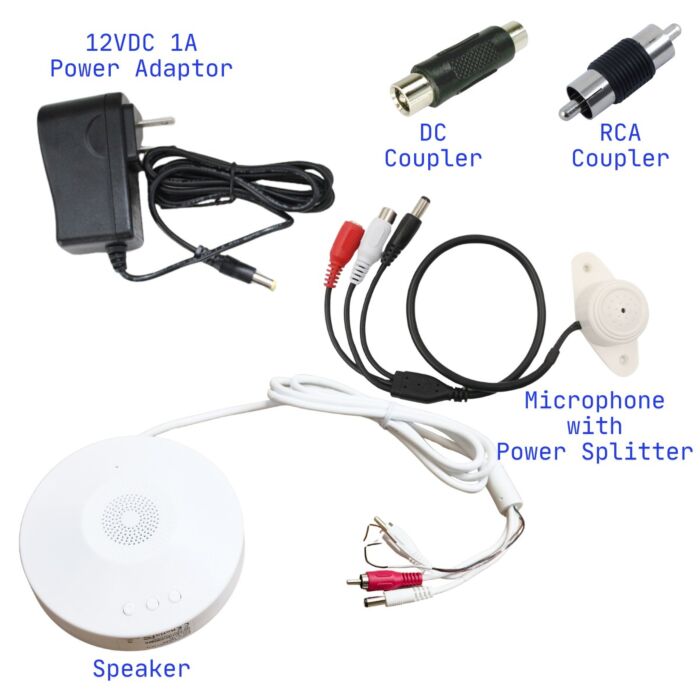
Two Way Talk Kit, Outdoor Speaker Mic Audio Kit
The external audio kit used to add listening and two-way talk to the compatible camera in this demonstration.
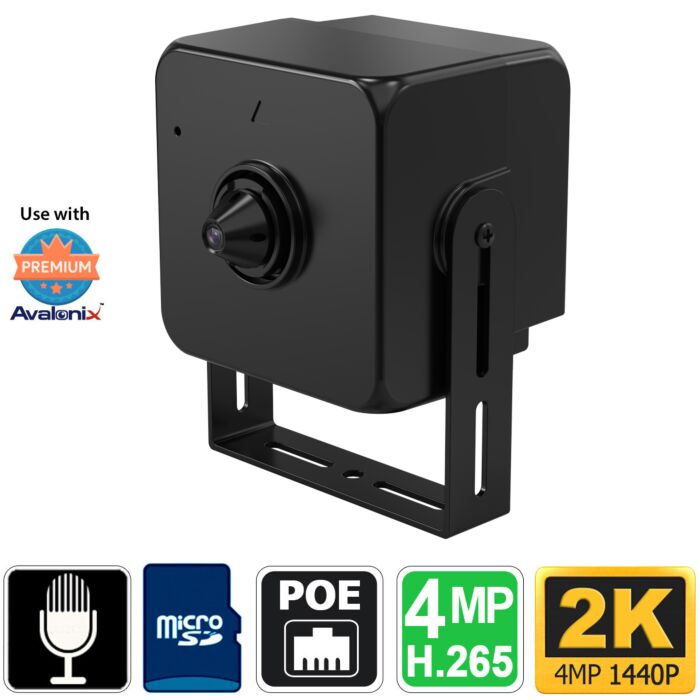
Mini PoE Security Camera with Pinhole Lens, Microphone
The compact Avalonix Premium Series pinhole camera used for the audio connections, DMSS demonstration, and motion-triggered alarm setup.
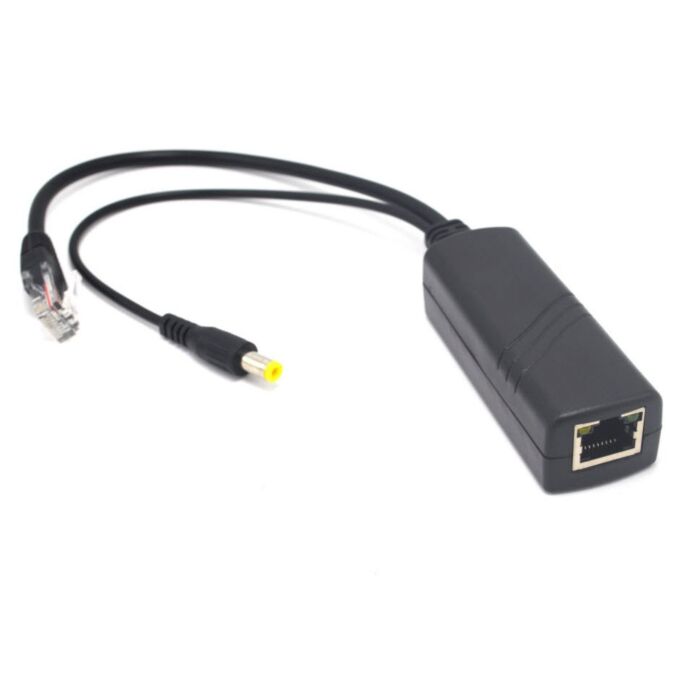
PoE Power Splitter 2A
Separates incoming PoE into a network connection and 12V DC power for the alternative wiring arrangement shown in the video.
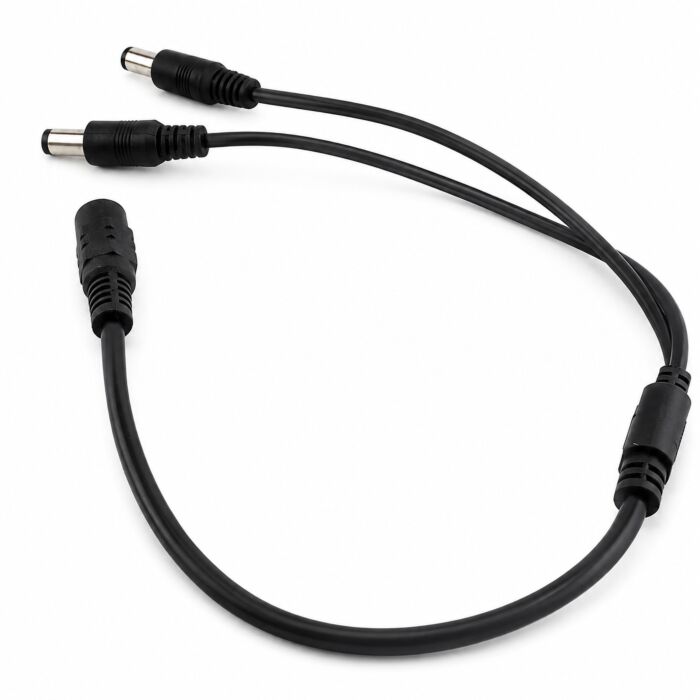
1 to 2 Way DC Power Cable Splitter
Splits the 12V DC output into two power connections for the camera and audio kit, subject to the available power capacity.
Quick product links: Two-Way Audio Kit | MiniCamPoE | PoE Power Splitter | 1-to-2 DC Power Splitter
Check Your Camera's Connections First
For this setup, your camera needs external audio input and audio output connections. A built-in microphone alone does not provide the connection needed for an external speaker. If you also want the camera to trigger the kit's siren, it needs a compatible alarm output.
I use the MiniCamPoE in the video because it provides the connections needed for this demonstration. When choosing another model from our PoE cameras, check its audio and alarm connections before ordering the kit.
Connect Audio, Power, and the Alarm Wiring
There are three parts to the wiring: the audio connections, power for the kit, and the alarm connection if you want to trigger the siren. I walk through the connectors in the video so you can see how they fit together on this particular camera and kit.
The microphone's signal feeds the camera's audio input, while the camera's audio output feeds the speaker. Use the connector labels and wiring information for your equipment; wire colors and connector arrangements are not universal across camera models.
For the initial demonstration, I power the camera through PoE and use a separate power supply for the audio kit. I also connect the alarm wiring so the camera can activate the siren. Lower the speaker volume before testing, because an enabled alarm can sound as soon as the setup is powered and triggered.
For an outdoor installation, mount the demonstrated audio kit in a protected location, such as under an overhang. I would not install it where water hits the front directly.
Select the External Microphone and Enable Audio Output
The MiniCamPoE has its own built-in microphone. To use the microphone on the audio kit instead, I open the camera's web interface and select audio line-in as the audio input. I also check that the camera's speaker output, or line-out, is enabled.
These settings determine where the camera gets its sound and whether it sends talk audio to the external speaker. Connecting the kit does not necessarily switch the camera away from its built-in microphone.
Listen and Talk Through the DMSS App
With the camera already added to DMSS, I open its live view and listen to the microphone. To talk through the speaker, I tap the microphone-shaped intercom icon. Tapping the icon again ends the intercom session.
If you test with your phone next to the speaker, you may hear feedback. That happens in my demonstration because the phone and speaker are close together. Lowering the phone's playback volume stops the feedback during the test.
Use Motion Detection to Trigger the Siren
The MiniCamPoE uses video-based motion detection in this setup. Although the app places some settings under an AI menu, this camera is not using AI human or vehicle detection.
I select the detection area using the grid, save it, and then enable alarm-output linkage in the motion detection settings. I also set the alarm output to Auto so it responds to the event. The output delay controls how long the alarm trigger remains active; the minimum shown in this demonstration is 10 seconds.
The siren and intercom do not work simultaneously on the setup shown. The alarm needs to finish before I can talk through the speaker. If movement keeps triggering the alarm, it can keep the intercom from working. I show this behavior in the video so you can account for it when deciding whether to enable automatic siren activation.
Power Both Devices with a PoE Splitter
If you do not have a power outlet near the speaker, the alternative arrangement in the video uses a PoE power splitter and a 1-to-2 DC power splitter. The PoE splitter separates the incoming connection into Ethernet data and 12V DC power. The DC splitter then distributes that power to the camera and audio kit.
- Connect the incoming PoE cable to the PoE splitter's input.
- Connect the splitter's Ethernet data output to the camera.
- Connect the splitter's 12V DC output to the 1-to-2 DC power splitter.
- Connect one DC branch to the camera's power input and the other to the audio kit, using the appropriate coupler shown in the video.
- Reconnect the audio and alarm connections, then test live view, listening, and two-way talk.
This arrangement still gets its power from the PoE source. The source and splitter must provide enough power for both devices together, including when the speaker and alarm are active. Confirm the voltage, polarity, connectors, and combined power requirements for your equipment before using this arrangement. The DC splitter distributes available power; it does not increase it.
I also mention power-output capability on selected camera models in the video. Do not assume every camera's 12V connector supplies power to accessories. Confirm that capability for the exact model.
Choose a Compatible Camera and Audio Kit
The main things to check are external audio input, audio output, and an alarm output if you want an automatically triggered siren. Once those connections and the power requirements are confirmed, the video shows how the pieces work together.
Browse our security cameras or contact us with your camera model if you need help choosing compatible equipment.
CCTV Camera World is your source for a high-quality, professional-grade security camera system for your home or business.
Read the Full Video Transcript
Full spoken transcript, grouped by topic with timestamps. Obvious brand-name and technology transcription errors have been corrected. Connection descriptions refer to the equipment demonstrated in the video.
0:00 Kit and camera overview
Thanks for tuning in to a new video by CCTV Camera World. I'll be showing you two different products. Here is my two-way audio kit that we carry here at CCTV Camera World. It's the model number two WA-KIT. You can find it on CCTV Camera World. It has a microphone built in on the top and a speaker and it's weather resistant. You can mount it underneath something. You should not be mounting it face like that with water hitting it. I don't recommend that but definitely something underneath a overhang is perfectly fine. And it has volume controls for a built-in alarm or speaker that it has. And the other reason I have this other camera is I'm going to hook this speaker kit up to this mini PoE camera that we have. It's called a MiniCam PoE. Pretty simple. It's by Avalonix. It's part of the Avalonix premium series. You can find it on CCTV Camera World.
0:48 Audio, alarm, and power connections
On the speaker, there are a couple of inputs that I'm going to show you how to connect to this camera. There is a two audio outs, they're RCA. One's an audio in, one's an audio out, it's labeled. There's a DC connector, which actually is a DC male. In order to connect a power supply, you usually have to use this barrel connector, which is a coupler, and we ship it with that if you're purchasing it with the power supply. And then I have a green terminal block hooked up to what's the alarm connection. There's an alarm out, that's how it's labeled, it lets you actually tie an alarm out from your camera into it. So let me show you how to get this connected with the camera.
1:27 Connecting the alarm wiring
Hooking up all the connectors is relatively easy. I have it already laid out. I'll go over briefly. My power terminals that I used, these green and black blocks, I'm using them to make the alarm output bridge together. That's the most important one. So the brown wire goes into positive and the black goes into negative. On the camera side, the brown wire goes into positive and green wire goes into negative. You connect those together and the speaker will activate.
1:57 Speaker volume
In your case, I have it turned off. You can turn off the volume by pressing the right hand side button and lowering it before you even get started. After you power on the speaker kit, you may want to do that to make sure you don't have loud sounds going into your ear.
2:10 Connecting audio and power
The audio connections on the camera and the speaker have to be connected together. Conveniently, the RCA audio out and in connections are RCA male connectors. They plug in without needing any additional wire in between into the cameras because the camera has a female RCA. So you may not be able to see it over there on the video, but the audio in is a white connector on the camera. It plugs into the red audio in on the speaker kit. The yellow audio out on the camera plugs into the white audio out on the speaker kit. Power is connected and the cameras power on using PoE. I've got everything configured
2:49 Siren and flashing lights
now one of the things I want to tell you about is my camera is actually set up has event linkage on where motion detection triggers the speaker so I'm going to increase the volume on the speaker kit so you can understand the power of the audio and the visual capabilities of this two-way speaker kit I'm going to trigger motion on my camera and there you go I'll lower the volume so you can hear me better. And it has this strobing red and blue lights. They look pretty real. On the iPhone, for some reason, it's not picking up how they look, but this is with turning the lights off. They are very bright and noticeable. So if you're looking to scare someone at the same time, so you're looking for a siren plus speaker and microphone built into one device. this two-way audio kit from CCTV Camera is the one to get.
3:48 Camera audio settings
Now the last part is showing you everything on the app. I'm going to turn my camera around so it's facing up. Now we have a whole full length video for the camera itself as well on the MiniCam PoE page. It comes with a built-in mic and a pinhole lens. I've already gone into the cameras web interface and told it that for audio input, I wanted to use the audio line in. So that's picking up audio from the mic on this two-way audio kit. And I also enabled the speaker output, which is the line out on the camera. Usually it's on by default. Now I'm going to show you the camera how easy it is to connect and view from the app.
4:36 Live view in DMSS
For the Avalonix Premium series, you would use the DMSS app on your phone. You click on it. If you already added it, you can actually watch live video from it. And here it is watching me live as I film.
4:48 Siren and intercom behavior
Now I've turned off the motion detection triggered alarm to be able to make this video because when I was making the video, it would actually keep sounding off the alarm. I was unable to use the intercom function. So that's one thing to keep in mind that if you wanna talk through the camera using the intercom function through the speaker kit, you have to let the siren or the alarm out dissipate first. It usually takes 10 seconds and then be able to talk. But if you have it tied to motion detection, it'll keep triggering off and you won't be able to use the intercom function I'm gonna show you. So here it is, and I'll give you an example of what I mean by that.
5:22 Listening and two-way talk
So when you're logged into the app, you can hear audio being picked up from the microphone that's either on the camera or on the speaker kit, depending on how you configure it. And I can hear myself through the app. If you want to do two-way talk, you press this icon here from the left-hand side. It looks like a microphone. It's an intercom function to be able to talk through the app and into the speaker or whatever device you have hooked up for a speaker device.
5:48 Audio feedback
Now, I'm very close to the speaker, so the audio is getting feedback, but if I lower the volume on my app, it stops that feedback. I can terminate the speaker by basically disabling the intercom function by pressing that icon again. So that's just an overview of basically how to hear audio and how to do two-way talk.
6:07 Motion detection area
Now, if you want to configure the camera and get more fancy with it, we recommend using the web interface. But there are things you can do through this gear icon on the top right-hand side. And first go to AI, go to motion detection, make sure it's enabled, and go to the grid detection area. And you can enable motion detection in this section by basically clicking on the grids that you want to mark red, and those will be motion detection. You can invert the selection by pressing the center button. You can erase everything by pressing the broom icon on the left-hand side, and then basically select the area you want for motion detection again. You can use an eraser to erase the ones you don't like, and only set the grid to be red wherever you want to. Once you're done, you hit the save icon on the top right-hand side, and it says successfully saved, and we'll come back to this section. So grid detection area is what you do for video based motion detection. This small camera does not have any sort of AI sensitivity. I set mine to two. Yours will be default at 3. Hit save and press OK.
7:05 Alarm-output linkage
Now if you want to tie this camera's motion detection to a MiniCam PoE. alarm output to a alarm out device, as in this case, the speaker and audio kit, click on more and then scroll down all the way to alarm output. Make sure that alarm output is on auto. I'm not going to turn that on just yet, but in your case, you should do that. So under remote config, I'm going to go under video detection and configure motion detection correctly. Make sure it's enabled and under advanced settings, you want to toggle that on and then Among all of this, the most important thing to realize is having alarm output triggered on needs to be enabled so that it can send out the
7:49 Alarm-output delay
output signal. For delay, that's how many seconds it will keep sending out a trigger after motion is occurring. So if you have someone standing in front of the camera constantly, it'll keep triggering every 10 seconds. The smallest amount you could do is 10 seconds for that alarm output. And hit save. That's really the only setting I really needed to enable. It says save settings successfully. Go back.
8:11 Testing the alarm
So now if I go back under alarm output and I go to auto, this will sound off. It's siren. I'm going to lower the volume just to make sure that it doesn't interfere with my recording here. But I have it now set to auto and now it will do motion detection activated alarm output every time someone steps in front of it.
8:34 Intercom limitation
Now with that going on in the background, I want to show you something. I cannot use the intercom when the alarm output's being done. So if I press this intercom button. Hello, hello. While it's on, I'm not able to get the intercom to work. So that's one thing you need to be aware of that when the alarm is triggered on, if you're using this for the alarm function, you cannot simultaneously use the intercom function until It does this 10 second siren out and the motion stops. If the motion keeps happening like me standing in front of the camera, you will not be able to use that intercom. So that's the only caveat you have when using the siren function on this. Otherwise you can always tie in a separate siren into the MiniCam PoE or your other Avalonix PoE camera that you get from CCTV Camera World and be able to use it.
9:25 Selected camera power options
Now this speaker kit is also great for using it with the SCI or AvaEye Core series of cameras because they are motorized zoom cameras from that series have a 12 volt connector that actually you can plug in directly this into the camera without needing a separate power adapter. It has a two way 12 volt DC power input slash output built in.
9:47 PoE splitter option
Now the last thing I want to show in this video is basically how you can actually reduce your need for a separate power supply by using something called a PoE power splitter. We sell these at CCTV Camera World for use cases just like this. If you use it along with a DC power splitter, this kind of thing, you can basically take 12 volt DC power that's taken from a PoE connection. You can split that PoE power into 12 volts and a network connection. and then split that 12 volts further into two to plug to two things. So on one side with my camera, the other side with a speaker. So let me show you what I mean. So
10:28 Connecting both devices
I'm going to disconnect the speaker from its own power supply. I'm going to take the coupler and put that coupler on the speaker's male DC connector. I'm going to connect one of my connections out of the one to two splitter into the speaker and the other one into the camera. So now what I'm doing is I'm powering both the camera and the speaker here as you can see with 12 volts DC. And now I'm going to disconnect the wire going into the camera from the PoE directly and I'm going to connect it into this PoE splitter. Once I do that and I plug in the PoE wire into the splitter, it has a little amber light that comes on that tells me it's on. What I'm doing now is basically using PoE to split power to both and the data to the camera. And now it'll be an easier connection. I'm going to connect my alarm, output connection back.
11:31 Testing the splitter setup
Now with both of the devices powered up, I should be able to get everything working just like I had it before. So I'm going to go back into my app. The motion triggered, I just turned that off. I go into my app, I can see my camera. I turn the camera away from me just to be able to make this portion of the video. Turning on the microphone. Hello, hello. I can hear myself. And then now I can do my two-way talk. Hello, hello. Speaker works as well. So everything works. This way, using a PoE power splitter, you can reduce the need of having a separate power supply if you don't have that available and you want to run everything down along PoE run.
12:10 Recap
So in this video, I covered a lot of different things. I gave you an overview of the speaker, a detailed connection setup, and also a detailed setup of how the MiniCam PoE works if you tie it into a two-way audio kit. Hopefully this gives you a lot of knowledge to be able to purchase different kinds of PoE security cameras that we sell at CCTV Camera World that you can combine with this two-way audio kit to achieve two-way audio functionality, and in addition to that, having an alarm output. Now you can always tie in a separate alarm output to the PoE camera using a siren of some sort. We have videos on how to do that with even our NVRs. If you have any questions, feel free to reach out to cctvcameraworld.com. Thanks for watching. If you're watching on YouTube, don't forget to like, comment, and subscribe.